Can You Connect A Bluetooth Speaker To Xbox And How To Set It Up
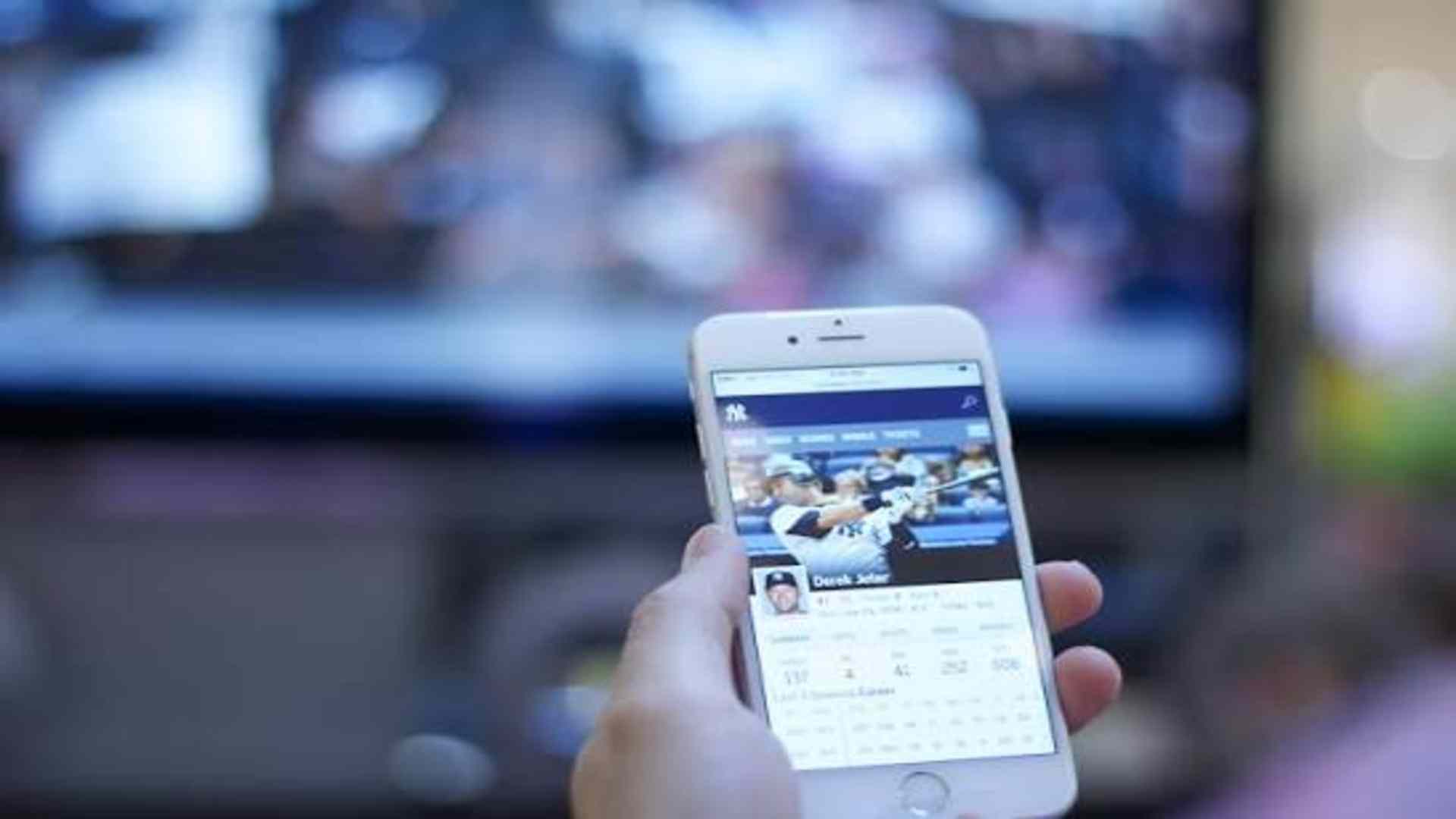
Many gamers want to enhance their audio experience by using external wireless speakers while playing on Microsoft consoles. Xbox Series X, Series S, and Xbox One consoles do not natively support direct Bluetooth audio connections for external speakers. However, players can still pair their favorite Bluetooth sound systems using alternative setup methods and audio accessories.
Understanding Xbox Bluetooth Compatibility Limitations
Microsoft built Xbox consoles using a proprietary wireless architecture known as Xbox Wireless to minimize latency during gameplay. Because of this technical design, standard Bluetooth audio profiles are not included directly in the system software. Gamers cannot simply go into system settings and pair a speaker as they would with a mobile smartphone.
This hardware limitation prevents direct pairing, but it does not mean wireless audio is entirely impossible. By understanding the available ports and display configurations, you can easily route sound to external devices. Choosing the correct workaround ensures clear audio without frustrating synchronization delays.
Connecting Through Your TV or Monitor
The simplest way to use a Bluetooth speaker with your console is by connecting the speaker directly to your television or monitor. Most modern smart TVs feature built-in Bluetooth transmitters that can pair with external audio devices. When your Xbox feeds sound through HDMI to the TV, the display forwards that audio wirelessly to your speaker.
To configure this setup, open your TV settings menu and locate the sound output options. Select Bluetooth device searching and put your speaker into pairing mode to complete the connection. This method eliminates the need for extra adapters and keeps your gaming space free from clutter.
Using a Bluetooth Audio Transmitter Adapter
If your gaming monitor lacks built-in Bluetooth capabilities, an external Bluetooth audio transmitter provides an effective solution. These small dongles plug directly into your console or display using a 3.5mm auxiliary jack or optical audio port. Once plugged in, the transmitter sends the game sound directly to your wireless speaker.
To set this up, connect the transmitter to your TV's audio output port or an optical converter connected to the console. Press the pairing button on both the adapter and your Bluetooth speaker until the status lights indicate a successful link. Make sure to choose an adapter with low latency support to keep game sound synced with visual action.
Connecting via the Xbox Controller
Another practical alternative involves utilizing the 3.5mm headphone jack located on the bottom of standard Xbox wireless controllers. You can plug a compact Bluetooth transmitter into the controller jack to broadcast audio directly to your speaker. This setup provides a mobile audio solution if your console is positioned far from your seating area.
Alternatively, you can run a physical auxiliary cable from the controller jack directly into the speaker input if it supports wired playback. While this involves a wire attached to the controller, it completely bypasses Bluetooth latency issues. It provides immediate, reliable sound during intense multiplayer matches.